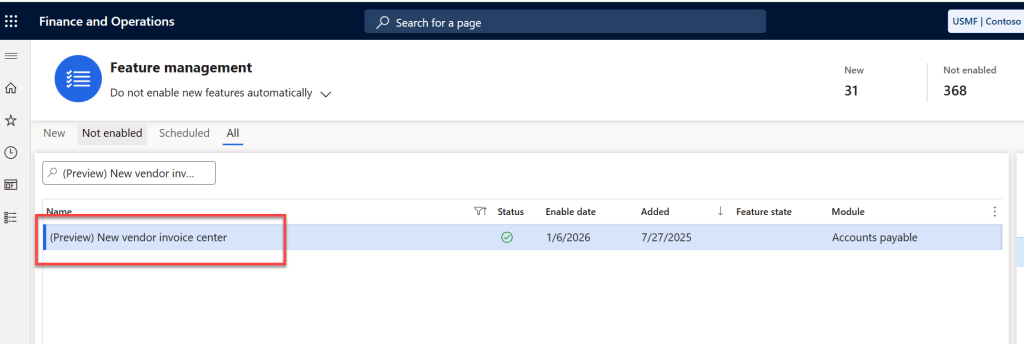
The Vendor Invoice Center workspace is a new experience ( in preview) in Dynamics 365 Finance & Operations (F&O) designed to give Accounts Payable (AP) teams a clear, end-to-end view of invoice processing all in one place. When you enable the New vendor invoice center feature from Feature management, this workspace replaces the older Vendor invoice automation workspace and brings a more modern, centralized way to manage vendor invoices.
What Is the Vendor Invoice Center Workspace?
The Vendor Invoice Center workspace is a dedicated page inside Dynamics 365 F&O that shows you where vendor invoices are in the process, from the moment they’re received through to posting. It’s built to help AP clerks and managers see work that needs attention, identify exceptions, and take actions directly from the workspace — without jumping between multiple screens.
Why This Workspace Is Useful
Before this workspace existed, AP teams often had to navigate multiple forms and pages to understand the status of vendor invoices. Now, with the Vendor Invoice Center:
- You get a centralized view of all vendor invoice stages
- You can filter and focus on key tasks quickly
- You get drill-downs to help solve exceptions faster
- You can take actions directly from the workspace — like correcting import errors or moving invoices into automation or workflow processing
- You can view invoice status by different legal entities using the global filter at the top of the page
This workspace is really about helping people get a quick, actionable snapshot of accounts payable work without clutter or confusion.
What You See in the Workspace
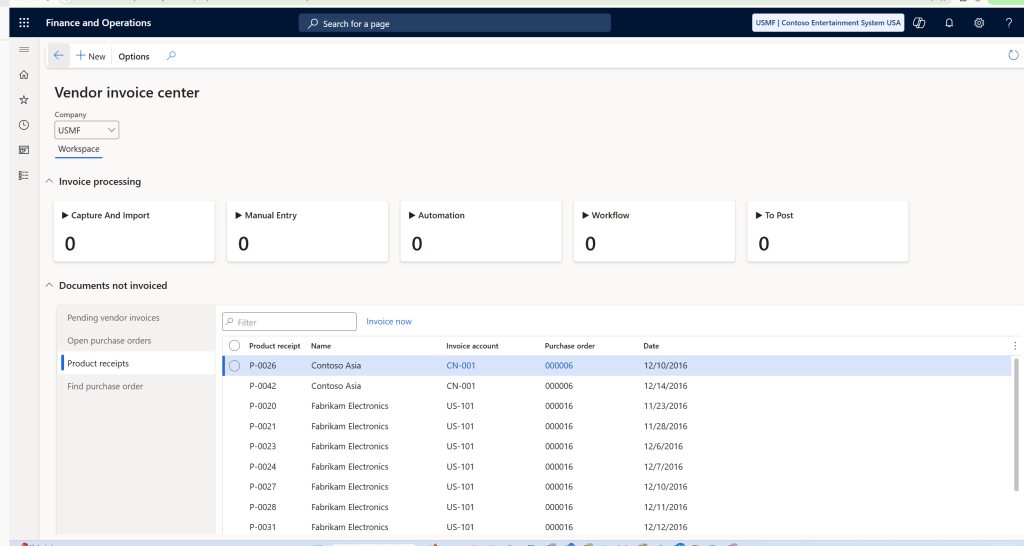
The workspace breaks invoice processing into several high-level stages, displayed as a series of tiles or sections:
1. Capture and Import
This is where invoices first land — whether they’re coming from integrations, manual imports, or external systems. If something went wrong during import (like file issues or missing data), those invoices show up in this tile so you can fix the problem.
2. Manual Entry
Invoices created manually appear here. This stage highlights:
- Invoices that are complete and ready for automation
- Invoices with validation mismatches (such as price discrepancies)
- Invoices with other errors that need correction before moving on
You can take quick actions like including invoices in automation or accepting certain mismatches based on your business rules.
3. Automation
After invoices are entered or imported, they may go through automated processing — matching with receipts, applying prepayments, or validating them against rules. If something fails here (like a matching error or prepayment issue), the workspace shows it clearly so you can intervene.
4. Workflow
Invoices that need approval show up in the workflow stage. You can see:
- Which invoices are waiting for approval
- Which ones failed workflow validation
- Which were rejected and need a re-submission
This helps AP teams track bottlenecks or exceptions in the approval process.
5. To Post
Once an invoice has passed automation and workflow, it ends up in the “To post” section. These are invoices that are essentially complete and waiting to be posted to the ledger.
How You Can Use the Workspace
Here are some practical ways teams can benefit from the Vendor Invoice Center:
- See all work in one place — no more jumping between list pages and forms
- Fix errors fast — import failures and validation problems are grouped and actionable
- Track status by legal entity — if you run multiple companies, you can filter with the global entity selector
- Work more efficiently as a team — everyone sees the same picture of what’s pending, what failed, and what’s ready to post
- Reduce invoice cycle times — because the workspace points directly to action areas and exceptions
By giving AP clerks and managers a central workspace, this feature helps teams handle invoices faster and more consistently.
Final Thoughts
The Vendor Invoice Center workspace brings clarity and focus to the often complex process of managing vendor invoices in Dynamics 365 Finance & Operations. With a stage-based layout, quick actions, and deep links into work streams, it’s designed to help AP teams stay organized and productive.
If your organisation wants better visibility into vendor invoice processing — and fewer surprises when exceptions occur — this preview workspace is a big step in the right direction.
 Brewing thought
Leave a comment