Hi Friends,
I recently applied a service update to a Dynamics 365 Finance & Operations Unified Development Environment (UDE), upgrading it from version 10.0.45 to 10.0.46 via the Power Platform Admin Center (PPAC). In this blog, I’ll share the exact steps, key takeaways, and a few practical tips based on my hands-on experience. With Microsoft continuing to shift ALM and environment management away from LCS and into PPAC, this update was a great opportunity to experience the new upgrade model first-hand.
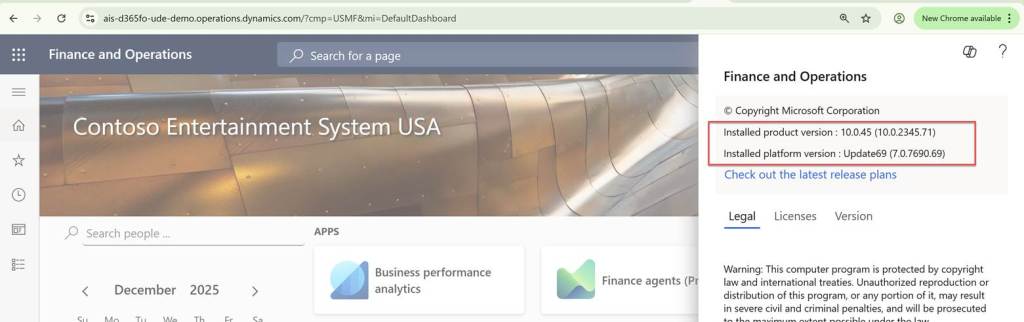
Below is a screenshot of the environment before the service update was applied:
Steps to apply update
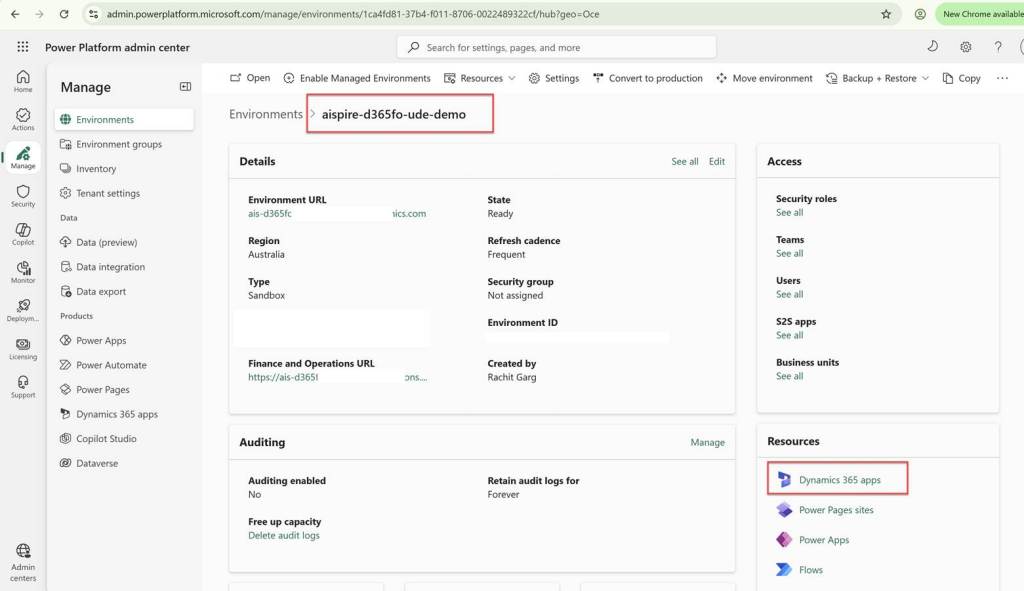
Begin by signing in to the Power Platform Admin Center (PPAC) using an account with environment administrator privileges. Once logged in, navigate to the Environments section and select the Unified Development Environment (UDE) that you want to update.
After opening the environment details page, locate the Resources section and select Dynamics 365 apps. This will display all Dynamics 365 applications installed in the selected environment, including the Dynamics 365 Finance and Operations Provisioning App, which is used to manage service updates and version upgrades for D365FO.
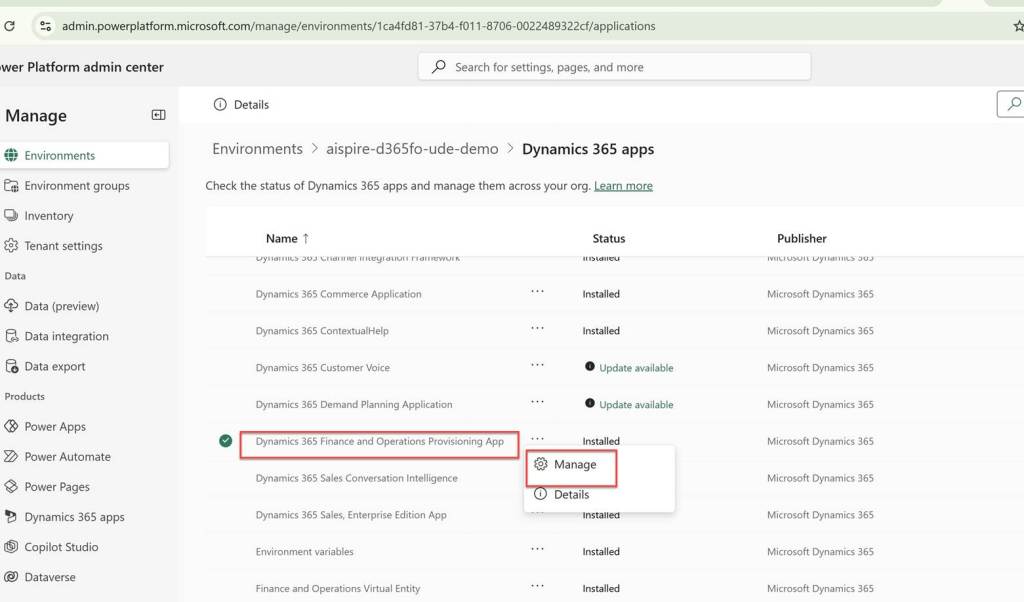
Within the Dynamics 365 apps list of the selected environment, locate the Dynamics 365 Finance and Operations Provisioning App. This app is responsible for managing the lifecycle of the Finance & Operations workload within the Unified Development Environment.
Once you find the provisioning app, click on the More application actions menu (the three dots ⋯) next to it and select Manage. This action opens the version management experience, where you can view the currently installed version and initiate a service update or upgrade for the UDE environment.
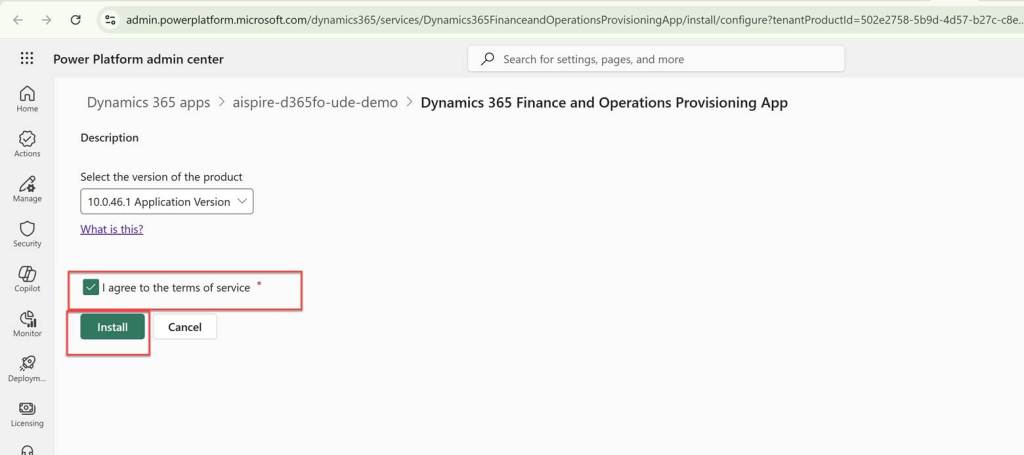
This is the key screen where the actual upgrade decision is made. On this page, you’ll see a list of available Dynamics 365 Finance & Operations versions that can be applied to the selected Unified Development Environment. Each entry in the list represents:
- The major application version (for example, 10.0.46 or 10.0.45)
- The number of Proactive Quality Updates (PQU) included or available for that version
This screen allows you to decide whether to:
- Move to a newer application version, or
- Stay on the current major version while applying the latest quality updates
Once the desired version is selected, you can proceed with the installation to initiate the service update. Refer to https://learn.microsoft.com/en-us/power-platform/admin/unified-experience/tutorial-install-finance-operations-provisioning-app#application-versions for more details.
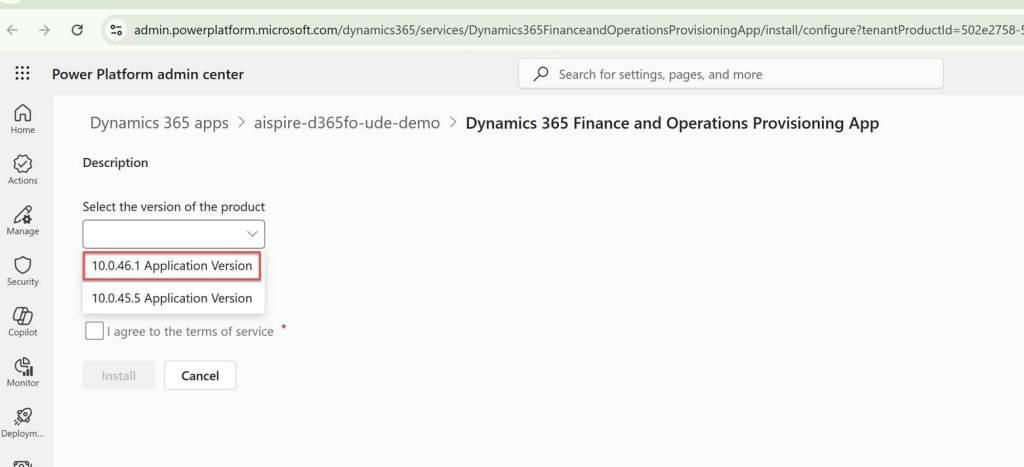
Once you select the version agree to the terms of service
Now the process to apply the update will begin and you will see below screen:
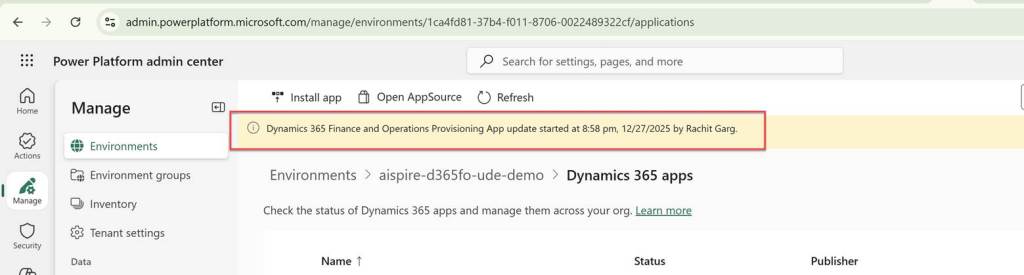
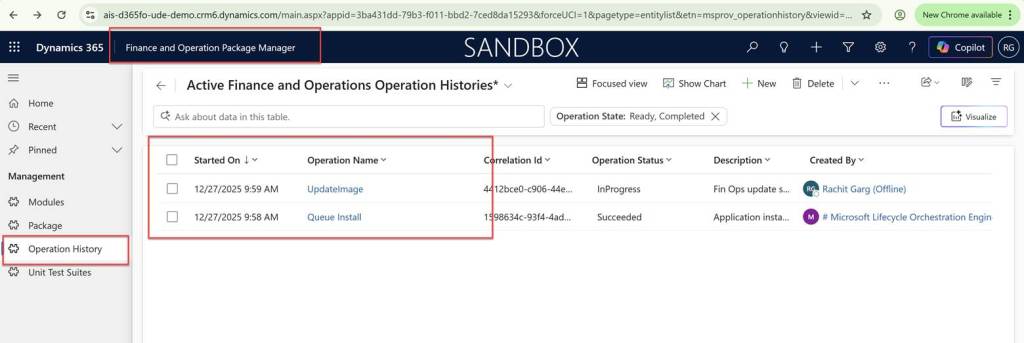
Once the service update has been initiated, you can monitor its progress by opening the Package Manager app within the Power Platform Admin Center.
From the Package Manager, navigate to Operation history. This view provides real-time visibility into all package-related activities for the environment, including the Finance and Operations service update currently in progress. You can track key details such as:
- The current status of the operation (In progress, Completed, or Failed)
- The start and end time
- Any warnings or errors encountered during execution
This is the recommended way to verify that the update is progressing as expected and to confirm successful completion before accessing the environment again.:
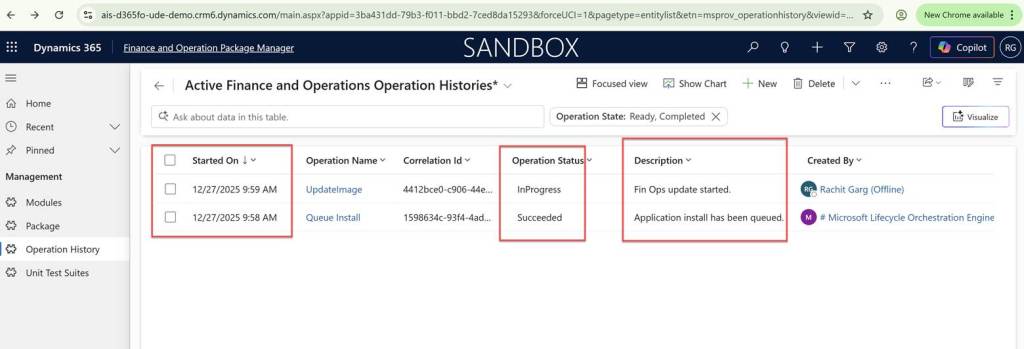
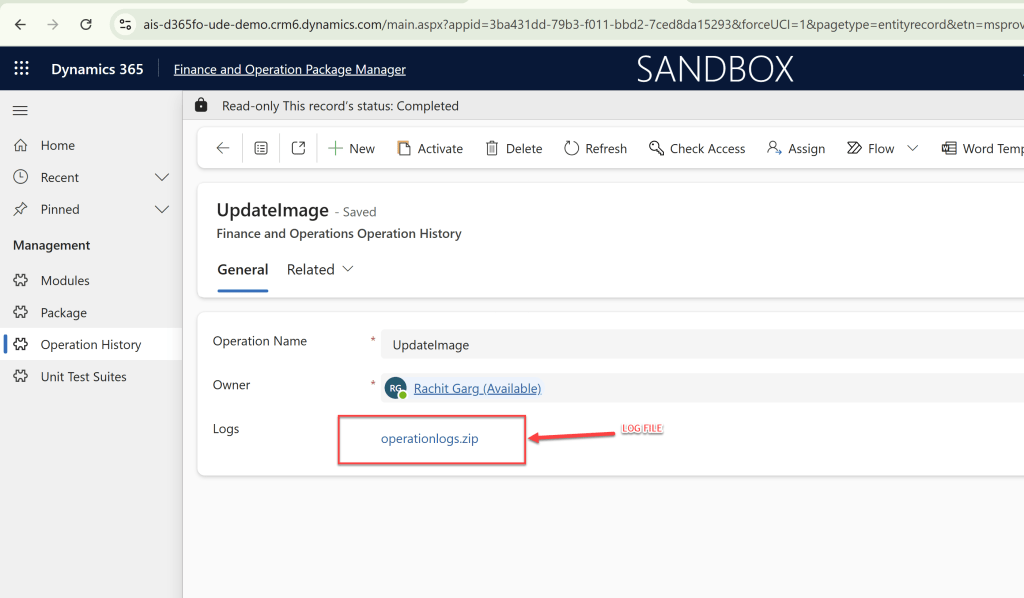
Once the status is succeeded then you can navigate to the details page and download the log file as shown below for any deeper undersstanding
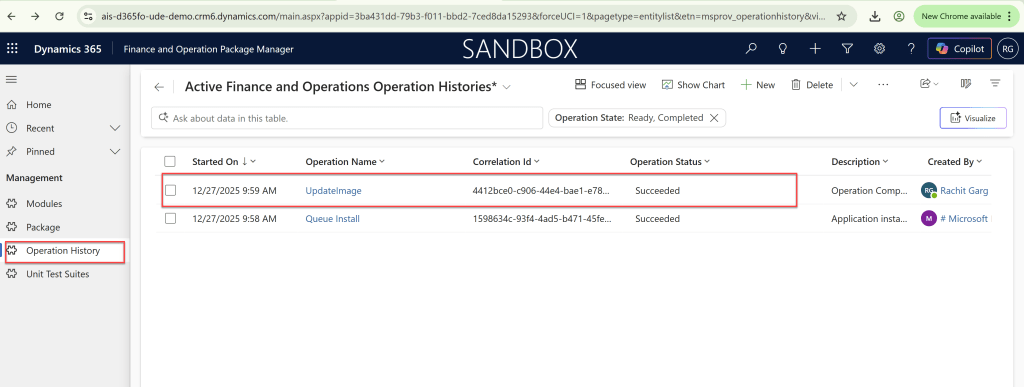
Once the operation status shows Succeeded, you can navigate back to the operation details page from the Package Manager or Operation History view. This page provides a summary of the completed service update, including execution timelines and high-level results.
From the details page, you have the option to download the log file, as shown in the screenshot below. These logs are extremely useful if you want a deeper understanding of what happened during the update, or if you need to:
- Validate individual steps executed as part of the upgrade
- Investigate warnings or non-blocking issues
- Capture evidence for audit, ALM documentation, or support cases
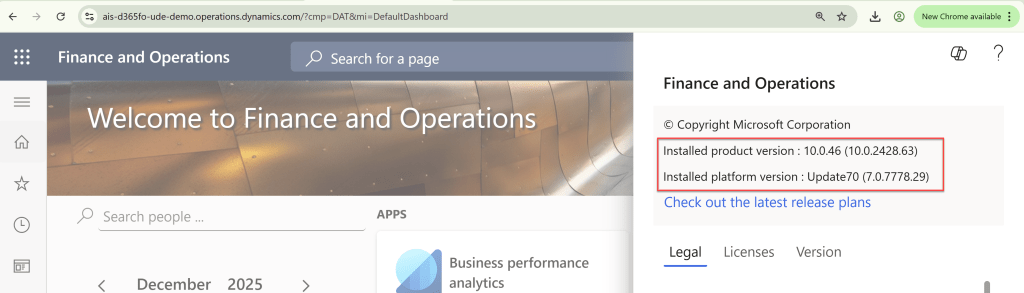
After the service update has completed successfully, log back in to the Dynamics 365 Finance & Operations Unified Development Environment using your usual application URL.
Thank you for taking the time to read this walkthrough on updating a D365FO UDE environment from 10.0.45 to 10.0.46 via PPAC. I hope this step-by-step guide, along with the screenshots and insights, makes your next service update easier.
 Brewing thought
Leave a comment