With the new Copilot capabilities in Dynamics 365 Field Service called “Summary configuration“, admins can now specify the data used by Copilot in Field Service, whether in web or mobile.
This feature is in Preview and has below prerequisites:
- Your environment must be in the United States or the United Kingdom.
- You must have a paid Field Service environment. The work order recap feature isn’t available in trial environments.
- You must update your environment to the latest Early Access build for 2023 wave 2
Configuration steps
In Field Service, change to the Settings area and go to Copilot settings > Summary Configuration.
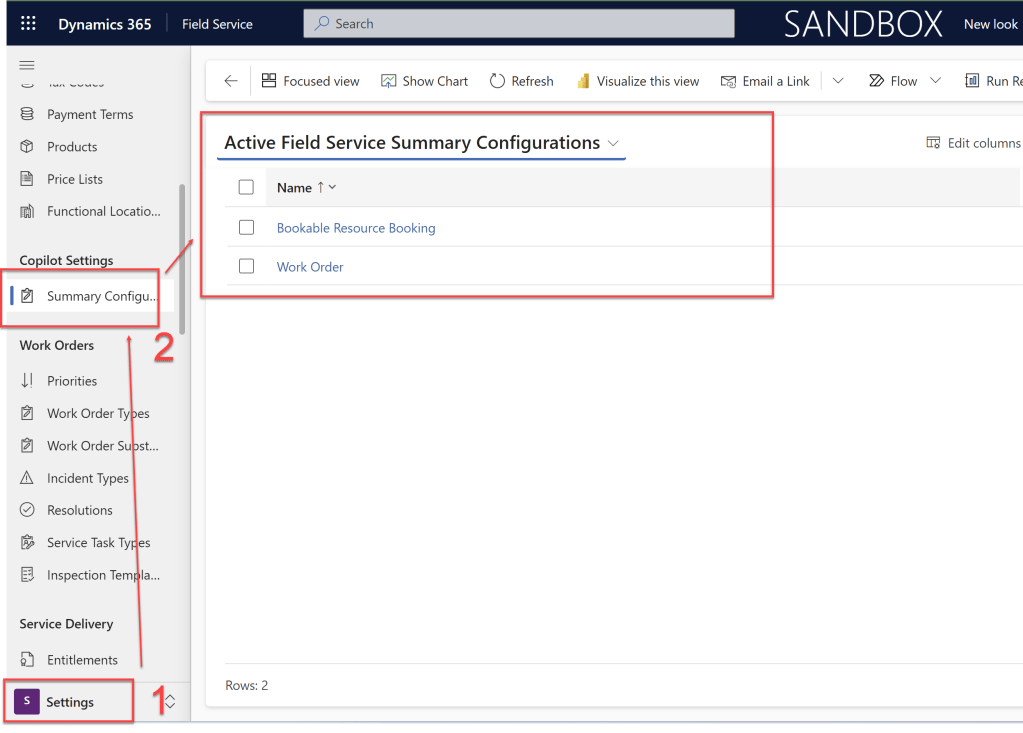
In this example we will be configuring for Work order , open the work order details page and enable the configure summary setup and define the tables and fields you want copilot to use when generating summaries.

The good part here I like is that you can define the data from related tables as well.
Once you are done with this, you can test the AI generated summary for existing work order using the test button on the same screen

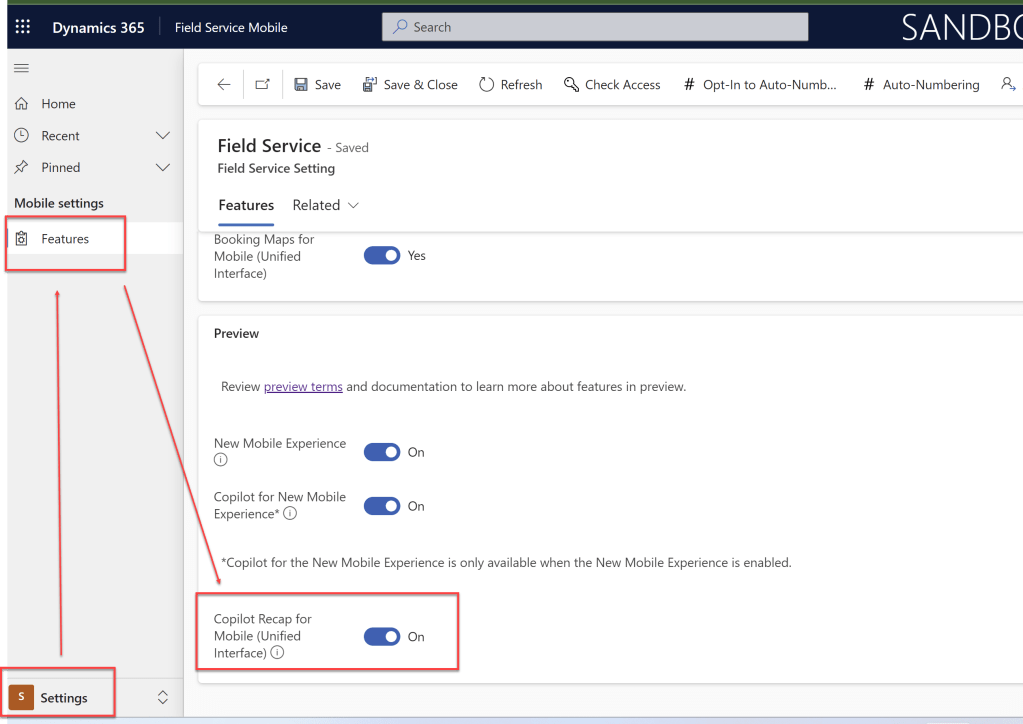
The same can be enabled in the Field Service Mobile app. In order to enable in the Field Service Mobile app, go to Settings area and go to the Features page and in the Preview section, enable Copilot Recap for Mobile (Unified Interface).
Now frontline workers can generate a recap on your mobile device and refresh it as you progress through the work order lifecycle
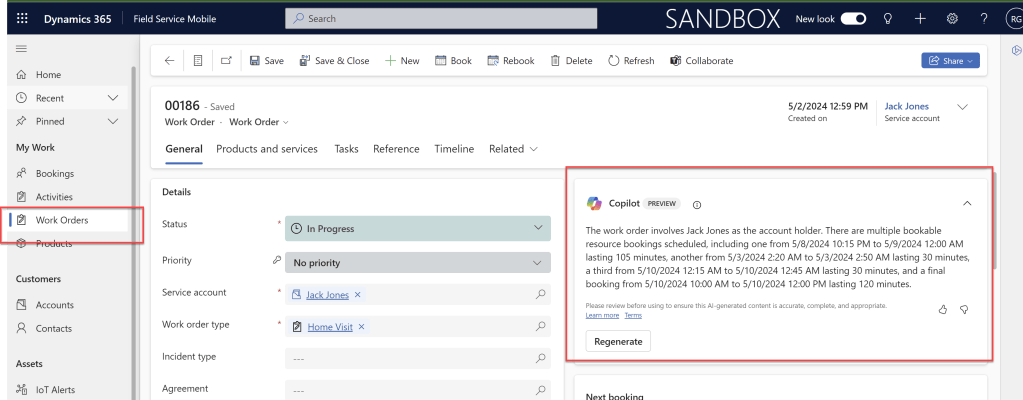
In order for mobile device to use this feature it must be connected to internet and it cannot be used in offline mode. Also the content of a recap isn’t saved. It’s only available to the user who generated it.
The responsible AI guidelines used in this feature can be found at FAQ about work order recap with Copilot and summary configuration (preview) – Dynamics 365 Field Service | Microsoft Learn
Thanks for reading the block.
 Brewing thought
Leave a comment