In this blog post, I’ll talk about Copilot capabilities IN Dynamics 365 sales.
It is important to understand that Copilot FOR Sales is different to Copilot IN Dynamics 365 Sales. The blog stands true as of March 2024 and in future please refer to latest Microsoft naming conventions.
Microsoft Copilot for Sales is a seller experience application that’s available in Microsoft 365 and Microsoft Teams applications. It lets sellers capture, access, and update CRM data from within Microsoft 365 and Microsoft Teams applications. It also has generative AI capabilities such as record summarization and email content generation. Microsoft Copilot for Sales works with Dynamics 365 Sales and Salesforce CRM.
Copilot in Dynamics 365 Sales refers to the AI assistant that uses generative AI to summarize opportunities and leads, and generate meeting preparation notes. It’s integrated with Dynamics 365 Sales apps.
The capabilities can be classified in below categories :
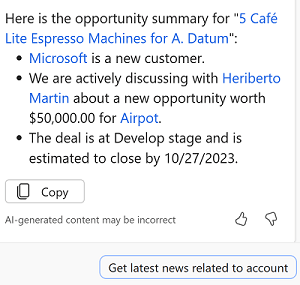
Record summarization :Record summarization gives you a quick summary of your opportunity and lead records. Copilot generates the summary from predefined fields. For example in the copilot side pane we can select Get Info >> Summarize opportunity and copilot will create the summary information.
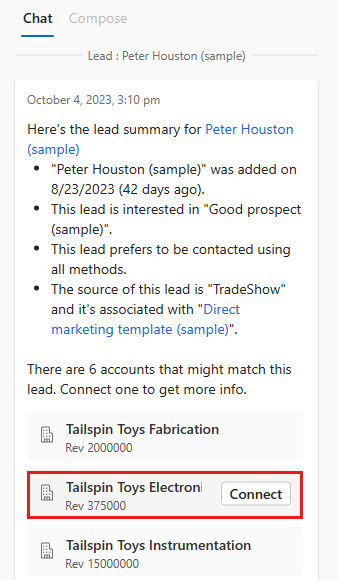
Copilot can enrich your leads with information from Dynamics 365 Sales, LinkedIn, and Bing.
Copilot can get the latest news that features or mentions your accounts, curated by Bing. These news articles can be great conversation starters and help you understand the dynamics in your customers’ organizations.
Recent changes : Copilot generates the list of recent changes from the records’ audit history. Your administrator can change the fields that are included in the recent changes list. Ensure that your entire sales team agrees on the top 10 fields that are most relevant for your business.
In the Copilot side pane, select the sparkle icon, select Ask questions > Show recent changes for opportunity or Show recent changes for lead, and select Enter.

Meeting preparation :
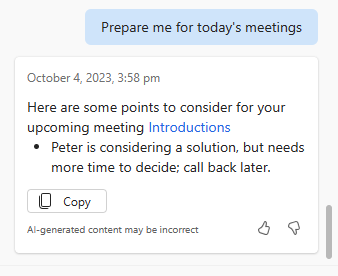
If you have meetings scheduled on your calendar in the next 24 hours, Copilot can help you prepare for them. Go into your meetings with a helpful summary of notes from the last three months and the most recent email thread on the timeline of the related record.
- In the Copilot side pane, select the sparkle icon (
 ) and select Stay ahead > Prepare for sales appointments.
 - From the list of sales appointments, hover over the meeting that you’d like to prepare for and select Prepare.
Copilot can help make sure that you don’t miss important emails by reminding you of any that you haven’t replied to.
- In the Copilot side pane, select the sparkle icon and select Stay ahead > Show emails that need follow up.
- If you have a record open, Copilot lists unanswered emails that are related to that record.
- If you’re in the grid view, Copilot lists all your unanswered emails.

Email assistance : This feature is in preview . Copilot can help you compose professional-looking emails, summarize email conversations to add to your customer notes, and give you reminders to follow up on emails you haven’t replied to.
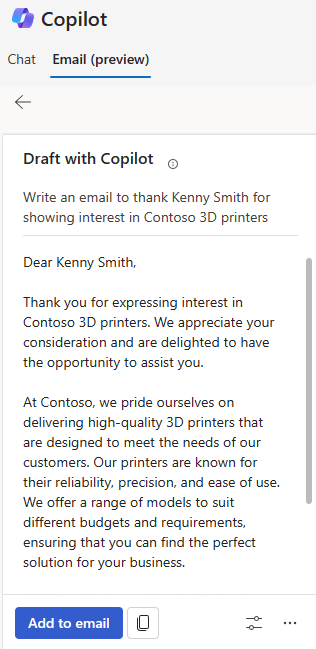
When you’re sending an email, you can provide the context for the email in the Copilot composer, and a draft is generated. You can review the draft, copy the content to the email, and send it to recipients.
- Open a new or an existing email from a lead or an opportunity record.
- On the Copilot pane, go to the Email (preview) tab.
- Select Describe the email you want. NoteWhen replying to an email, default options are available to generate a draft, including Reply to an inquiry, Make a proposal, and Address a concern. You can choose an option that suits your needs or draft a new email.
- In the Draft with Copilot section, enter the statement for which you want to generate the draft email. An example statement, Write an email to thank Kenny Smith for showing interest in Contoso 3D printers.A draft is generated for the statement. Review the suggested content.
Visit below page for FAQ for Copilot IN Dynamics 365 sales
https://learn.microsoft.com/en-us/dynamics365/sales/sales-copilot-faq
For details on above scenarios refer to https://learn.microsoft.com/en-us/dynamics365/sales/copilot-overview
 Brewing thought
Leave a comment