In this post I will share how we can setup the Monitoring and Telemetry using Application Insights for D365 Finance and Operations. (*This feature is in public preview in service update 10.0.30. The setup/behaviour may slightly change/improve by the time it is generally available.)
First lets cover basics of Application Insights from a very high level. Application insights falls under the category of Application Performance Monitoring (APM) tools. It collects Metrics and application Telemetry data, which can be used to gain insights on application activities and health.

Below is a view of various azure monitoring tools and extensions available and application insights is one of them
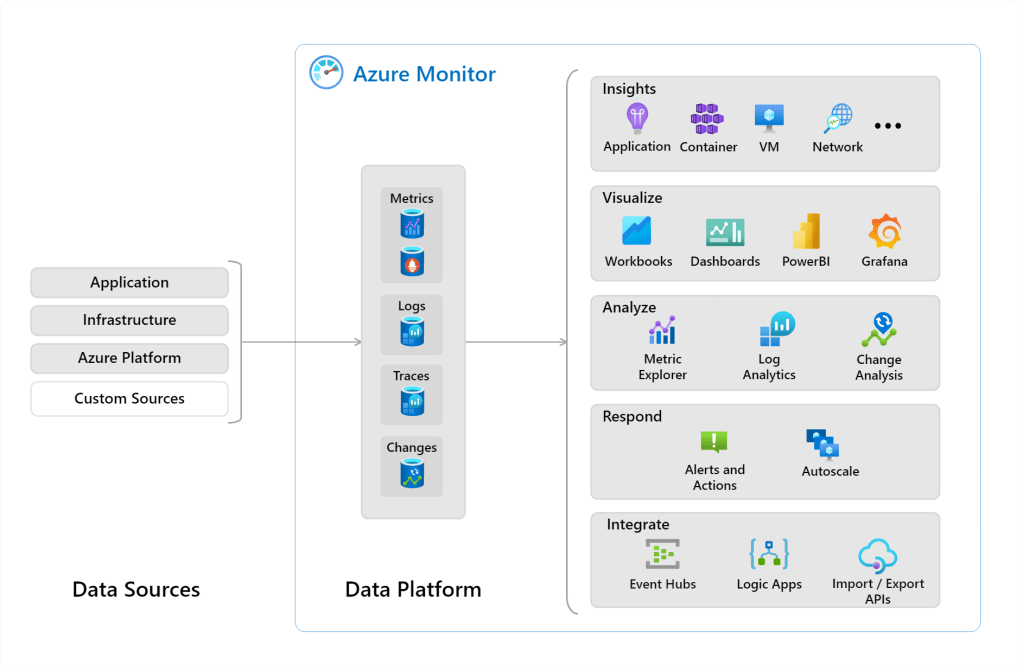
Now coming to Microsoft Dynamics 365 Finance and Operations, this feature is a direct, point-to-point integration between an instance of a finance and operations app and the target Application Insights destination. Each application Insight resource has an “Identification Key” which uniquely identifies the resource in Azure portal. This is used in F&O configuration.
Below is step by step process to setup and enable it:
- Login to Azure portal and create a new resource

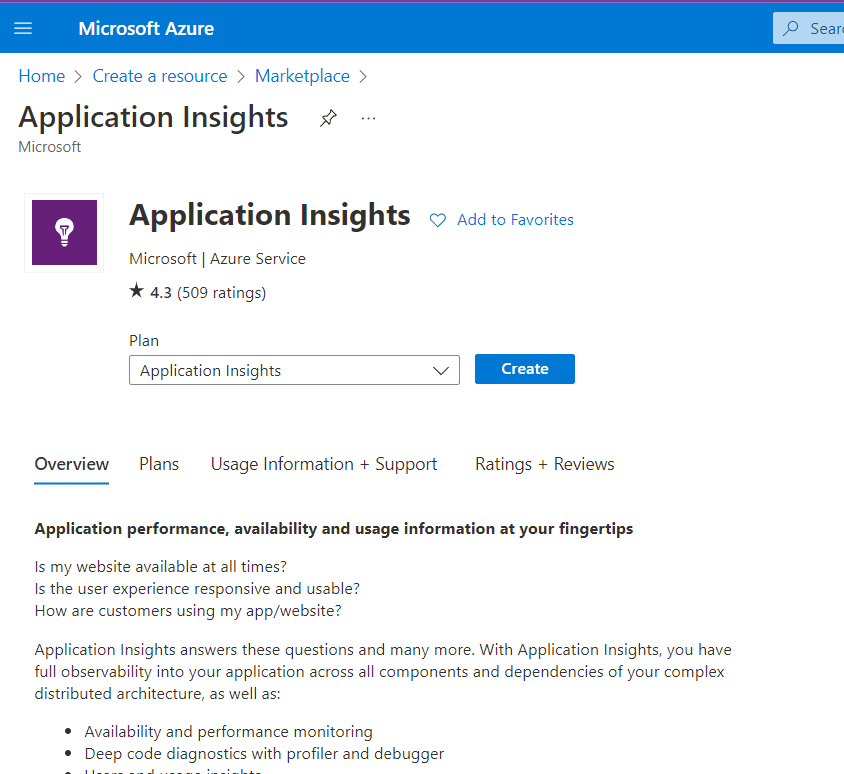
- Select resource of type “Application Insights”
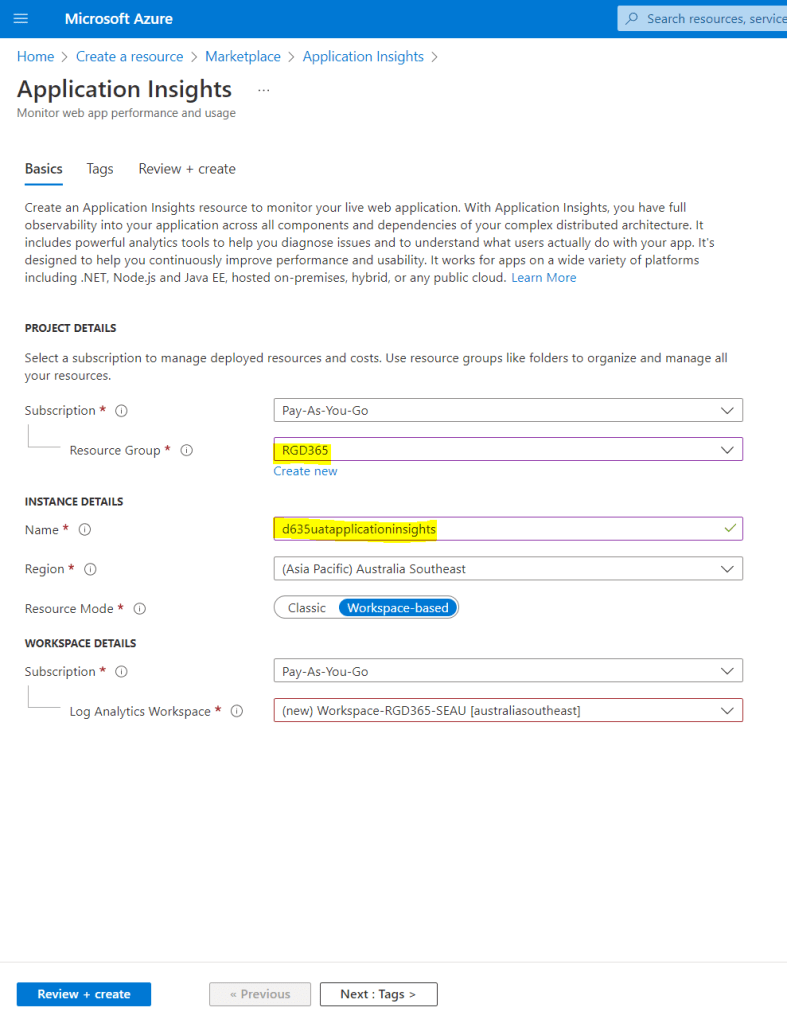
- Select the resource group and give it a name. It is recommended to have a proper naming convention for ease of use.
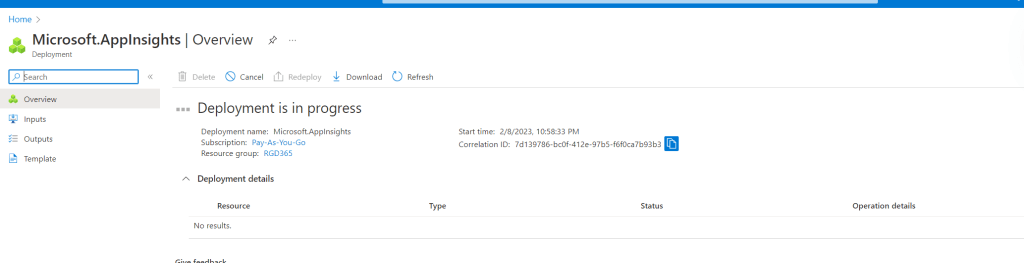
- Once we select review + create and validation is complete, then it takes few minutes for the deployment to complete
- Once the resource is deployed, copy the instrumentation key

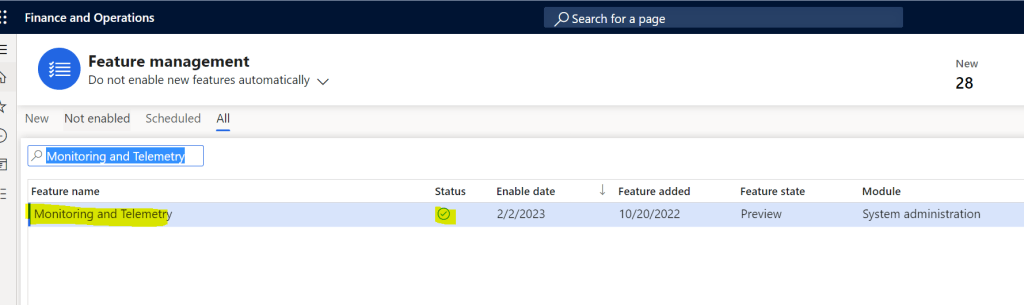
- Now open the Dynamics 365 F&O feature management workspace and enable the feature named “Monitoring and Telemetery”
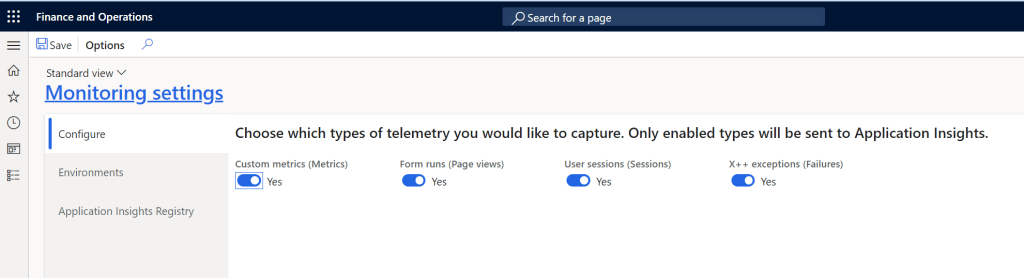
- Navigate to System Administration >> Setup >> Monitoring and telemetery parameters

- This form has 3 tabs: Configure , Environments & Application Insights Registry. On the configure tab, we can select which types of telemetry we want to capture and send to application insights
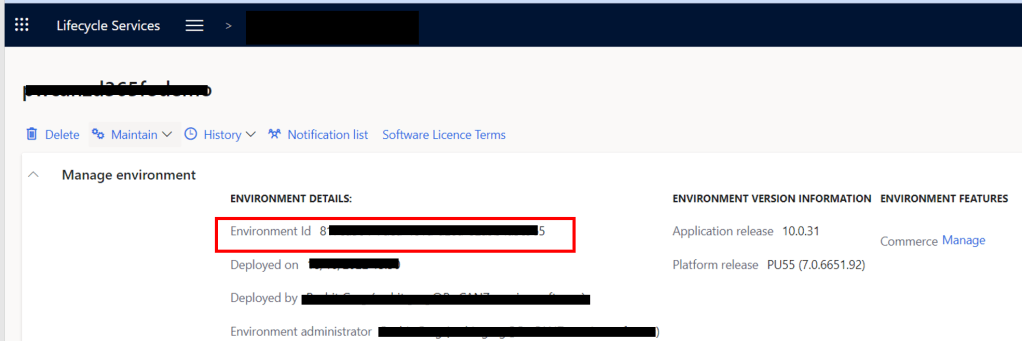
- On the Environments tab, we provide the environment ID and the environment mode . This can be found from LCS environment details page and is unique for each D365 F&O environment.
Copy the environment ID as shown below from LCS
- Create a record in the environments tab page. This is a nice way to handle scenarios when databases are restored, this setup is preserved in non production environments.
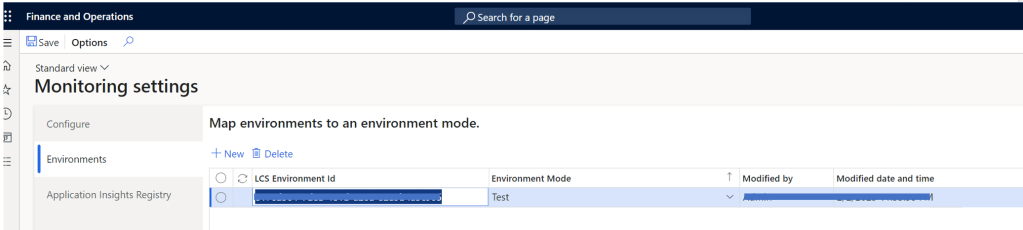
Environment mode is important as the mode ties the environment with application insights in the next tab page. So if you want multiple environments to send the telemetry data to same application insights resource, then it is possible.
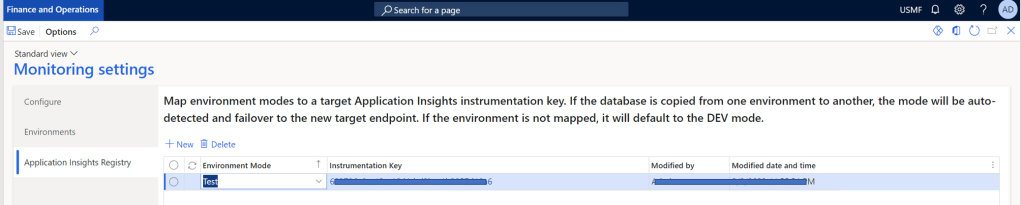
- On the third tab we have to define the mode and link it with the instrumentation key which we copied from the azure portal after creating the rescource.
Now it’s time for action. In my case it took some time for the initial telemetry feed to reflect in the portal but it did captured good information form the environment.
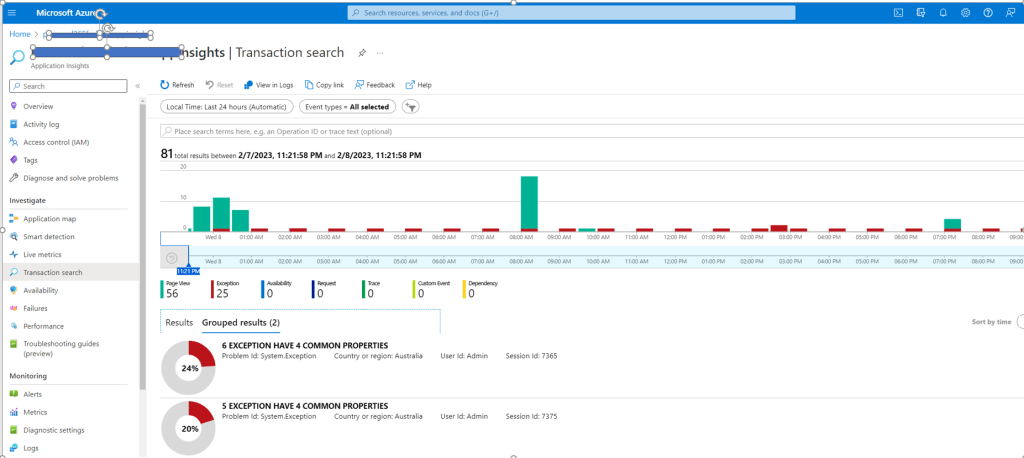
Further analysis and custom dashboards, queries can be written in application insights to derive more targeted information. X++ developers can also log exceptions from custom code to feed into the telemetry. It will be interesting to see how microsoft converges the application monitoring capabilities across Dynamics 365 applications.
Below are some good reference article for more information on this topic:
- https://learn.microsoft.com/en-us/dynamics365/fin-ops-core/dev-itpro/sysadmin/monitoring-and-telemetry-appinsights
- https://community.dynamics.com/ax/b/axinthefield/posts/update-to-using-application-insights-for-monitoring-d365-finance-and-operations
- https://github.com/microsoft/Dynamics-365-FastTrack-Implementation-Assets/tree/master/Commerce/Essentials/Telemetry
- https://community.dynamics.com/365/dynamics-365-fasttrack/b/techtalks/posts/dynamics-365-finance-operations-monitoring-and-telemetry-using-application-insights-january-18-2023
Thank you for reading the blog.
 Brewing thought
Leave a comment